Affiliate Product Review Template 📑 - Clickbank or Amazon Product Review...


Affiliate Product Review Template 📑 - Clickbank or Amazon Product Review Template

00:01 This video is going to reveal how you can quickly and easily create awesome affiliate product reviews from a free copy and paste template whether this be Clickbank or Amazon affiliate products or any affiliate products whatsoever that you want to create a review for, come to https://www.scrapersnbots.com/webtools/product-review-template.php and in about 30 minutes you can create amazing looking, SEO optimized affiliate reviews for free. 

00:36 The affiliate product review template involves you filling out a few sections of information which include the basic information about the product you are reviewing, information about the website that hosts or sells the product you are creating the review for, a product description, your experience with the product, a list of good points of the product, a list of bad points, a list of alternative products and services and then finally, the part where you press a button to create the review. 

01:04 What is great about this review template is that it has built-in spin syntax format (https://www.scrapersnbots.com/webtools/nested-spintax-generator-tester.php) built into it so every time you click the button to produce the review from the template, each time the output is going to be different and unique. Also, the text boxes with which you're going to fill up with information about the company and the product that you are reviewing and promoting also supports nested spin syntax. 

01:31 Start the affiliate review template with the basic information about the product you are creating this review for which includes: [1] the name of the product that you are promoting. [2] the name of the products author or the company name (the easiest way to find that out is scroll down to the next section of the review template and click the link with the text click to look up which opens up a new browser tab to a whois lookup tool, put the URL of the website. [3] a checkbox that you check if you want the name of the product you are writing this review for to be linked automatically in the product description section of the review template). [4] a checkbox that when checked makes it so the link to the product you are reviewing open the link in a new window. [5] the affiliate link to the product you are creating the review for. This is the link with which you're going to make your affiliate commissions when the reader of your review clicks through and purchases the product. [6] the tool tip text or title text which is a little pop-up text that occurs when you put your mouse over a link. 

02:55 The next section of the review template is important facts of the website that owns the product or service you're reviewing. You are going to enter these pieces of information: [1] the Domain Registered On: date and [2] Domain Expires On: date. Both of these pieces of information can be obtained by once again referencing a whois lookup of the website that owns the product you are creating this affiliate review for. [3] the websites url which, in this case, is not the affiliate url but the direct url to the website that is selling the product you are creating this review for. [4] the name of the product being reviewed. This text field should already be pre-populated with what you entered in the first section of the review template. [5] the satisfaction guarantee of the product you are creating the review for. 

03:57 The remaining sections of the review template are [1] product description [2] your personal experience with the product, if applicable [3] the good points about the product you are creating the review for [4] the bad points about the product you are creating the review for [5] alternatives to the product you are creating this review for. For these sections of the review template, there are keyboard shortcuts that you can take advantage of. For example if you typing the letters pn followed by SPACE key product name automatically gets inserted. If you type in cn followed by SPACE key, the author of the product you are reviewing, or the company name automatically gets inserted. As far as text formatting is concerned, the review output isin basic HTML format - paragraphs and lists. If want to create a paragraph out of a block of text, you type in whatever your paragraph is and at the end of the paragraph press the ENTER key twice. For list items - press the ENTER key once for each separate list item. When you're finished with the list, press the ENTER key twice. 

05:04 I've inserted the product description. For the simplicity of this video, I am not doing any spin syntax but keep in mind that all the following parts of the review template that you are going to fill out all support nested spin syntax. Each of the following section of the review template also all have a basic built in HTML editor that let you insert links, bold text, underline text and italicize text. For the next section or the review we are going to put in personal experience you may have with the product you're reviewing. If you do not want to include this section in the review output then simply check the checkbox with the text that reads Check this box to not include this section. 

05:53 The next 2 sections of the review template are a list of the affiliate product's good points and a list of the products' bad points. After each list item, press the ENTER key once. With regards to the list of product's bad points, if there really are some bad points about the product you are creating the review about, put them in. It makes your review look less biased and more honest. You're more likely to make a sale if you include one or two bad things about the product than if you don't include any, unless there truly are no bad points about that product. If that is the case then I would type in this section of the review template something to the effect of There truly is nothing at all that you will not like about this product. 

06:53 The final section of the review template is going to be a list of alternative products which will be a list of products similar whatever the product is you reviewing. I'd recommend filling this out because it makes it look like your intentions are unbiased and that you are really trying to help the person who is reading the review. There is nothing that says you can't insert affiliate links in the list of alternative products so that way you don’t have to worry about losing affiliate commissions because the person reading the review does not buy the product you wrote the review for. 

07:17 All parts of the review template are now filled out. It's time to create the review. Optionally select the number of spaces padding you want before each line of review HTML code. There are 2 ways to output the review. One output type is in regular HTML. Click the button with the text Create Review from Template. The HTML for your review is output in the large text box. Double click to copy to the clipboard and paste it wherever you want to put it which includes anything that supports HTML code, including your own Wordpress post. The code behind this review from template tool uses spin syntax so every time you click the button Create Review from Template, the output is going to be unique, non duplicate content. The second type of review output is in spin syntax format so you can copy this and put it into any program that supports spin syntax such as GSA search engine ranker. Whichever output you choose whether it's regular HTML or spin syntax, you can click the button with the text that reads click to preview which will open up a new browser tab and display what your review looks like. If you click this button with the text publish this review it's going to take you to a web page (https://www.scrapersnbots.com/blog/content/huge-list-of-best-places-to-create-a-free-website-or-blog-online-to-post-content.php) that lists dozens of places that are 100% free for you to post this review online.
🧾 How to Open Many Urls 🔗 in New Tabs


00:01 In this simple short video I'm going to show you how to use the free web-based tool where you can open an unlimited number of URLs or links with a single click.

00:14 When you get to the page of this open multiple links tool, you scroll down a little bit. Look for the green text box and paste your links. You can paste on unlimited number of links website addresses. You are probably going to have to instruct your web browser to allow the opening of popups or at the top of the page just click where it reads 📃 Text Instructions.

00:36 Click the button with the text that reads Open Multiple Links and all your links are going to open, each one in a new browser tab.

Feel free to download the entire text transcript of this 🎬 video tutorial on how to use how to open 🗔 multiple copied links 🔗 online.

Create/Generate Keywords 🗝 from Text or HTML Code (even if HTML contains...


🎬 Video Instructions on How to Use Tool to Create Keywords 🗝 from Text https://www.scrapersnbots.com/webtools/extract-keywords-from-text-online.php Below you can find the entire text transcript 🎬 video instructions on how to use tool to create keywords 🗝 from text so you can read instead of view the video. If the instructions on this page are not understandable, feel free to refer to these video and image tutorials (links open in new window so you don' lose your place here). Here you can find the extract keywords from text 🗎 app free at https://www.scrapersnbots.com/webtools/extract-keywords-from-text-online.php [Text Instructions] How to Create Keywords from Text or HTML https://www.scrapersnbots.com/webtools/extract-keywords-from-text-online.php?tab=text [Image Instructions] How to Create Keywords from Text or HTML https://www.scrapersnbots.com/webtools/extract-keywords-from-text-online.php?tab=images [Video Instructions] How to Create Keywords from Text or HTML https://www.scrapersnbots.com/webtools/extract-keywords-from-text-online.php?tab=video [Questions & Comments] How to Create Keywords from Text or HTML https://www.scrapersnbots.com/webtools/extract-keywords-from-text-online.php?tab=questions [Text Transcript] How to Create Keywords from Text or HTML https://www.scrapersnbots.com/webtools/extract-keywords-from-text-online/video-text-transcript-extract-keywords-from-text-online.txt 00:01 In this video I'm going to show you a great little updated tool that allows you to take a block of text, could be the text of an entire web page, part of a web page, HTML code, even if the HTML code has CSS code, PHP code or Javascript and it will clean up that text so it's only displaying the visible words that are on the webpage the actual words people can see, and from that it will pull out the most frequently occurring 5 word long, 4 word long, 3 word long and 2 word long, most dominant keyword phrases from that text. 00:31 The Extract Keywords from Text tool can be found at https://www.scrapersnbots.com/webtools/extract-keywords-from-text-online.php. Scroll down the page a little bit and you're going to see the tools large green text box. You paste the text that you want to extract the keywords phrase in that textbox. You can paste the text from an entire web page by pressing Ctrl - A on the keyboard than CTRL + C then paste it in the tool. You can even insert full HTML code in the tool, even if that HTML code contains CSS, PHP or JavaScript code. 01:10 After you have inserted the text you want to extract keywords from, press the button with the text Get Keywords from Text. The Extract Keywords from Text tool is going to clean up the text you entered and show you the word count of the visible text on the page and then provide you keyword statistics on the number of keyword phrases that occur at least three times on the web page. It's going to show keyword phrase information for keywords phrases that are 5 words long, 4 words long, 3 words long and 2 words long. 01:32 Obviously this information is very useful from a SEO standpoint it shows you what the dominant keyword phrases are for a web page. The Extract Keywords from Text tool is really good to use if for example, you are a website owner you want to make sure that content you have written is actually focused around the keyword phrase you think it is, use the stool and it will tell you what keyword phrases are the most dominant keyword phrases for the web page. This tool is also useful if you just want to be able to read the content of a web page without the distraction of advertisements, videos, images, etc. #createkeywordsfromtext #determinekeywordsfromtext #extractkeywordsfromtext #extractkeywordsfromtextonline #extractkeywordsfromtextonlinefree #extractkeywordsfromtexttool #findkeywordsfromtext #generatekeywordsfromtextonline #keywordsfromtext #keywords

Grab Keywords 🔑 from Web Page Generator


00:01 In this video I'm going to introduce you to an updated tool that allows you to put in a URL or web address and extract all the main keyword phrases that occur repeatedly on that web page so you can know what keyword phrases a web page is focused around and you can duplicate that success or you could even use the tool to check your own web pages to make sure that the content is focused around what you think it's focused around.

00:29 Get the url/web address of the web page whose keywords you want to analyze and reverse engineer and paste that url into the Keywords from URL online tools green text box. You then press the button with the text Get Keywords from URL and in a matter of a second or two the Keywords from URL app is going to reveal a lot of information about that web page.

00:51 First thing that you see is this first top text box contains all the words on that web page just the word everything else is stripped out along with the number of words that make up that web page. You're also going to see the number of 5 word long keyword phrases that occur at least 3 times on that web page, the number of 4 word long keyword phrases that occur at least 3 times on that web page, the number of 3 word long keyword phrases that occur at least 3 times on that web page and finally, the number of 2 word long keyword phrases that occur at least 3 times on that web page. You get a good birds-eye view of that web pages content using the Keywords from URL tool. The tool shows you exactly how many times each repeating keyword phrase occurs on the web page.

01:31 I am going to input a url into the Keywords from URL tool that is a little more content rich so you can get a much better idea of how revealing this tool is in terms of keyword spying. You can see the tool is extremely fast at extracting the top keyword phrases from a web page, about 1 second. Again you can see all the text only that makes up the web page with a total word count. You get a really good birds-eye view of the web page, almost as if you are seeing the web page as the search engines see it which is what we want.

01:53 As in our previous example, this tool reveals all of the dominant keyword phrases that occur at least 3 times on a web page with the exact number of times each repeating keyword phrase appears on the web page.

02:08 Here is a powerful strategy that you can apply and use with the Keywords from URL online tool. Determine an exact keyword phrase you want to focus a new piece of content we're going to create around, i.e a web page. Take that keyword phrase, put it into Google and then take the top 3 search results on the first page of Google search results. Put the url for each of these 3 search results into the Keywords from URL tool. Save all of the dominate keyword phrases that this tool reveals to you and be sure to incorporate as many of these keyword phrases into the piece on content you create.

03:08 Of course be sure to do this in a way that is natural. Don't engage in keyword stuffing and make the mistake of creating unnaturally appearing content for the mere purpose of cramming a bunch of keywords into. In order to fit the keywords in probably means that you are going to have to create a really long piece of content with lots and lots of words and information but this is fantastic news when it comes to SEO because now we have created a piece of content that is better and longer than everyone else's, and has all of the right keyword phrase in it.

Video 🎬Showing How to Use Mass Blog Ping Tool to RPC Ping Multiple URLs ...

Video 🎬Showing How to Use Mass Blog Ping Tool to RPC Ping Multiple URLs ...


00:01 In this video I'm going to show you about our updated bulk URL blog ping submission tool that pings your new content to content aggregators and ping servers so your content gets indexed and noticed faster by the search engines.

00:17 This bulk blog ping tool is very simple to use. Enter in the URLs you want to ping in the tools large green text box. You can enter up the 5 URL's or web addresses to ping. Then press the button with the text Ping URL's.

00:38 In a matter of a few seconds you'll see the results of your ping just below the tool. Each new URL that is submitted will produce another string of feedback showing under the tool until all the RPC pings are complete and then you'll get this message box indicating that your pinging is complete.

00:56 What's great about this paying service is you get a lot of great details including the exact verbatim line-by-line response from each of the ping servers. URL's that were successfully submitted and pinged by the ping server will show in green any ones that were not successful will show NOT in green so you can, at a quick glance, be able to pick out the successful from the not successful pings.

01:25 This tool is very fast and simple to use and any time you create a new web page or blog post or make a significant update or alteration to an existing web page you should RPC ping. This free bulk ping tool allows you to ping up to 5 web addresses at a time.

01:47 One thing I want to caution you about is something I actually found by accident when I was working on this tool, doing the programming for this tool. I wanted to find a giant list of ping servers to submit content to. You'll notice however that this tool only submits to 3 different ping servers, pingomatic, twingly and ping.fc2.com.

02:11 The reason why only three is when I tried looking for other ping servers what I did is I typed into Google free online blog ping and randomly chose pingler.com in an attempt to acquire a good healthy list of ping servers. I took all of these ping servers URL's and put them in the tool and every single one of these in the list, except for the three that we have on our bulk blog ping tool, returns the same error that these ping servers are not active, they don't even work they are 100% dead URLs!.

02:42 I don't know if these websites that make you think that they're pinging your url to dozens of ping servers, maybe THEY don't know these ping servers are dead and this is news to them OR maybe they're not really pinging your url at ALL. Just something to think about.

You can down load the finished text transcript of this 🎬 video tutorial revealing how one can use online url rpc ping online.

How to Use YouTube Video 📺 Tags Extractor Online Tool 🧰 to Grab Any Vide...


How to Use YouTube Video 📺 Tags Extractor Online Tool 🧰 to Grab Any Videos Tags & Reverse Engineer the Most Popular YouTube Videos' [The Tool] Extract YouTube.com Video Tags for Single Video & View Tags for Leading Videos Returned from Video Search https://www.scrapersnbots.com/webtools/youtube-tags-viewer-online.php [Text Instructions] How to Use Free Tool to Extract Tags and Reverse Engineer Most Popular YouTube Videos https://www.scrapersnbots.com/webtools/youtube-tags-viewer-online.php?tab=text [Image Instructions] How to Use Free Tool to Extract Tags and Reverse Engineer Most Popular YouTube Videos https://www.scrapersnbots.com/webtools/youtube-tags-viewer-online.php?tab=images [Video Instructions] How to Use Free Tool to Extract Tags and Reverse Engineer Most Popular YouTube Videos https://www.scrapersnbots.com/webtools/youtube-tags-viewer-online.php?tab=video [Q & A] How to Use Free Tool to Extract Tags and Reverse Engineer Most Popular YouTube Videos https://www.scrapersnbots.com/webtools/youtube-tags-viewer-online.php?tab=questions 00:01 In this video here I'm going to reveal to you 2 great YouTube.com (http://youtube.com) marketing tools that you have to check out which are both 100% free. You don't need to become a member of anything or pay for anything and they allow you to reverse-engineer YouTube videos and search terms. 00:18 To use the first tool, which is a tool that allows you to grab the tags for any YouTube video, paste the entire web address to a YouTube video in the tools text box and press the button with the text that reads 'View & Extract YouTube' Tags. In about a second, all the tags the uploader assigned to that video appear in a small text box just below the tool. You can click either of the 2 options buttons next to the tags text box that allow you to view and/or copy the tags as regular comma separated tags of view/copy the tags as hashtags with the # sign in front. 01:05 The second youtube seo research tool here is even more powerful. You put in a keyword phrase or a search term and press the Enter key on the keyboard or press the button with the text that reads 'View the Top YouTube Videos' and the tool is going to return to you the top videos on YouTube for that search-term you entered. 01:22 You can view any of the videos on YouTube by clicking the video title which will open to that video on YouTube in a new window or new tab. Click the button underneath the title of the video with the text that reads 'Get Video Tags & Average Daily Views' and it's going to give you the tags for that video as well as the average number of daily views for that video which is calculated by taking today's date, subtracting it from the date that the video was uploaded giving you the number of days that that video has been online, then you divide that by the total number of views the video has since it has been uploaded, and that'll give you the average number of views that video is getting, per day. 01:59 You get your tags showing in the small text box below the video title. You can click either of 2 option buttons to view the tags as comma separated tags or as hashtags with a # in front of each tag. You can see the average daily view count for that video just under the text box with the videos tags. 02:07 What's powerful about this tool is the idea that a YouTube video is successful, certainly the tags that YouTuber has assigned to their video is extremely important to the success of the video as well as the title. This tool allows you to copy both of these and use them for your YouTube video upload. Find the videos that are getting the most average daily views, copy their tags, copy their title make your YouTube video just as popular as there video is. 02:35 I'm going to show you a little trick with these hashtags that a lot of people don't know about. When you upload a video to YouTube, we already discussed inserting the keywords in the appropriate video upload details text box where you insert your desired video tags, but one thing people don't know is that if you put, at the very end of your videos description, the hash tagged version of your tags, these hashtags will appear just beneath your video. These hashtags will be hyperlinked to a search result of other videos with the same hashtag. 03:35 Come to this tool here at https://www.scrapersnbots.com/webtools/youtube-tags-viewer-online.php, give it a try. It is 100% free. This is very powerful information that is really going to help popularity of your videos. Simply enter the main keyword phrase you want to target for your video upload, find the YouTube video search results that has the highest number of average daily views and simply copy that videos success. #howtoextracttagsfromyoutubevideos #howtofindthetagsofanyyoutubevideo #youtubetagstogetviews #howtoproperlytagyouryoutubevideos #howtochecktagsonyoutube #tagsforyoutubevideos #howtocheckvideotags #howtoextracttags #howtoseetagsonyoutubevideos

[𝗨𝗣𝗗𝗔𝗧𝗘𝗗] Bold Text 🖺 App for YouTube.com Description or Facebook.com


Text Transcript of Video Showing 🎬 Video Instructions Showing Find Out How to Use Bold Text 🖺 App for YouTube.com or Facebook.com Posts & Comments

00:02 In this video I'm going to be showing you how you can easily create bold fancy style text for YouTube descriptions or Facebook or pretty much anywhere on the internet.

00:13 Creating bold text for YouTube video descriptions or Facebook is as simple as using this free tool here called The Bold Text App for YouTube.com Description Text or Facebook.com and it's real simple to use but if you feel like you need more instructions there's text instructions here image instructions as well as video instructions.

00:32 All you do is type or paste the text you want bold for youtube or facebook in the large green textbox. Then click the button with the text that reads Create Bold YouTube/Facebook Text. You get many different styles of texts that are not just bold text, but fancy text as well. To select the text to paste wherever you want in YouTube or Facebook or wherever, Click on the style of bold text you want, press CTRL + C to copy it to the clipboard.

01:06 Go to the YouTube video and paste the bold text that is now copied to your clipboard into the YouTube description textbox or go to Facebook.com and whether it's a Facebook post, a Facebook comment, or pretty much anywhere on Facebook.

01:28 And you'll see that your bold text is sent looking exactly like it should. You really can use this bold text app for any place on the internet, like even if you want to leave a comment on a website. And as you can see in the video, almost anywhere you paste your bold text that was created with the bold youtube text generator app, it comes out looking like it should. The bold text can be pasted on any website that accepts html code or formatted text.

02:11 Now if you want to leave a bold COMMENT on a YouTube video you can use the bold text tool just previously shown to you and it works just fine but if all you want to do is leave a bold comment that stands out you don't care about fancy text and you just want your YouTube comment to be bolder and stand out more than other peoples YouTube video comments, start your comment with the asterisk which is like the snowflake looking character above the number 8 on your keyboard *. Start the YouTube comment you want to be bold with the asterisk, make sure there is no space between the first asterisk and the first letter of your comment and end your bold comment with the asterisk, making sure there is no space between the last letter of your comment and the asterisk.

You can download the text transcript of this 🎬 video instructions showing find out how to use bold text 🖺 app for youtube.com or facebook.com posts & comments.

How to Find Secret 🕵Sections of Websites 📃 you May not Know About https:...


In this video I'm going to show you how you can use one of our free tools to find secret sections of websites you may have never known existed.

We recently just today is a matter-of-fact post that a video because we updated the features of a tool we have at https://www.scrapersnbots.com/webtools/get-all-links-from-webpage.php that allows you to grab the all of the links on any web page on the internet.

Well when kind of playing around with the tool I happen to put in the URL to eBay in and when I did that I was looking through the links and I noticed there's a section in there called DEALS that I never knew existed and I looked at some of them and they were good deals.

Some of these were really good deals like this Dyson vacuum cleaner. I use this tool here https://www.scrapersnbots.com/webtools/get-all-links-from-webpage.php to filter out just the deals part so I put the word deal in there which narrowed the number of links grabbed down quite a bit and then I thought to myself "well what if I just look through or grab all the links from the DEALS page?".

So I did that and then I filtered out anything that didn't have the word deal in it and it showed a pretty huge list of things related to deals on eBay and I thought to myself "this is something that you can use on pretty much any website in the world to find sections of that website you never knew existed"!.

#deals #websitedeals #viewhidden #hiddenwebsite #viewhiddenwebsite #viewhiddenwebpage

🧾 Grab ALL URLs 🔗 from a Web Page Online Tool


00:01 In this video I'm going to be showing you about an extremely useful tool that we had that we've updated which allows you to scrape all the links off of any webpage at https://www.scrapersnbots.com/webtools/get-all-links-from-webpage.php. 00:11 This is the tool here and there's various instructions at the top. In the green text box you enter a URL that you want to get all the links from and click the button Get All Links from Web Page button and it grabs all the links for you from that web page. The web address you want to scrape all the links from doesn't not have to be a main website URL it could be a subdirectory of a site. 00:34 You can filter which URLs are showing in the output text box like let's say for example you only want the links that are internal links of the website, you don't want links that lead outside the the main URL of the web page you just grabbed all the links from. In the orange text box enter the text that MUST be in each of the urls and press the Only Show URLs Containing button. To re-display all the links that were just grabbed and remove the filter, just click the Show ALL URL's button. 01:14 You have the option of converting all the URL's you grabbed from the web page into actual HTML links. Click this button with the text Convert URL's to HTML Links and all those URLs are converted into HTML code that become clickable links. You have the option of making the HTML code so that all the links open in a new window by checking the checkbox with the text Configure HTML code so links open in new window. Click the button with the text Convert URL's to HTML Links again. 01:38 You can out put all the links you extracted from the web page into spin syntax format by checking the checkbox with the text Output in Spin Syntax Format and once again click the button that reads Convert URL's to HTML Links.

Easy YouTube 📺 Tags Extension Bookmarklet App - Paste Dozens of YouTube ...


Text Transcript of Video Showing 🎬 Video Instructions About Easy YouTube.com Tags Bookmarklet App

00:01 In this video I'm going to show you the Easy YouTube Tagger bookmarklet - how to install it and how to use it.

00:09 The purpose of the Easy YouTube Tagger bookmarklet is that it makes it easier to assign tags to your YouTube video when you upload a video to YouTube. One sort of annoying feature of a YouTube video upload process is when you go to add tags to your video, you can't just paste a bunch of tags into the tags text box.

00:32 If you try taking a line by line list of keyword phrases or tags and pasting them into the tag section, you think intuitively, YouTube would know to separate them as separate tags but it doesn't, it just clumps them all together as one tag. The Easy YouTube Tagger bookmarklet allows you to take a list of tags and much more quickly paste your tags into the tag section of YouTube.

01:01 To install the Easy YouTube Tagger bookmarklet you scroll down this page a little bit. You're going to see the bookmarklet link right here where it says How to Install the Easy YouTube Tagger Bookmarklet. Look for the text that reads This is the Easy YouTube Tagger Bookmarklet. Left mouse down on the link. Drag and drop the link up to your bookmark bar and release the left mouse button.

01:24 The way you use the Easy YouTube Tagger bookmarklet is you simply go to the place on YouTube upload page where you want to put in tags for the video. Click on the Easy YouTube Tagger bookmarklet. You will see a little pop-up box giving you instructions but using the Easy YouTube Tagger bookmarklet is simple enough. In the aqua colored text box paste your line by line list of keyword phrases. Double click your mouse on the YouTube tags text box section and your entire line by line list of tags will automatically get pasted into the tag section, comma separated.

02:16 If you already have some tags in your YouTube tags text box, the Easy YouTube Tagger bookmarklet will not remove or alter these tags at all.

🧾 How You Can Get Best YouTube Video 📺 Tags on Every YouTube.com Video

🧾 How You Can Get Best YouTube Video 📺 Tags on Every YouTube.com Video


This page is going to show you several different ways you can view the tags or keywords for any video on YouTube.com.


  1. Go to the web page on YouTube that has the video you want the tags for. 

  2. Right click anywhere on the web page and make sure your mouse is not above the video or any image.

  3. Right-click with the mouse and a context menu appears.

  4. You're going to see a menu item view page source. Click that. 

  5. The source code probably looks like Gobbledygook to you but don't be concerned by that.Press CTRL + F on the keyboard. 

  6. In all web browsers this is going to bring up the search utility that is built into a web browser. 

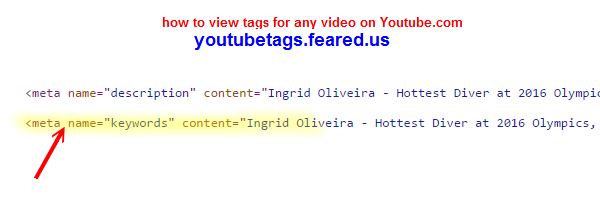
  7. Type in the word keyword it will be the first one that pops up here it is right here meta name=keywords

  8. The first one that pops up, here it is right, here meta name=keywords and then you see contents= and what's between these double quotes - those are the video tags the uploader entered when they uploaded the video to YouTube.com. 


The second method to view tags for any YouTube video is 


  1. Go to the web page that has the free YouTube tags extractor tool  https://nbots.me/wt25. 

  2. To use this tool, put in the full url or web address of the YouTube video you want to extract the tags for. 

  3. Press the View & Extract YouTube Tags button and in a matter of seconds all the tags for that YouTube video appear.

- Methods To Download ⏬ Video 📼 Directly from YouTube 📺 without Installing Software Internet Explorer Browser 2021 | Scrapers〘N〙Bots Blog

- Methods To Download ⏬ Video 📼 Directly from YouTube 📺 without Installing Software Internet Explorer Browser 2021 | Scrapers〘N〙Bots Blog

Methods To Download ⏬ Video 📼 Directly from YouTube 📺 without Installing Software Internet Explorer Browser - Text Instructions


Here are step by step text and image instructions on how to download any video from YouTube.com (or almost any other website with video)

[1] Go to the page that has the video you want to download directly without software.

[2] Press to begin the playing of the video. If there are any advertisements that play first you must first bypass them so the actual video you wish to download has begun playing and continues playing during this download process. This ensures that the video is in memory.

[3] Press F12 on your keyboard. This will bring up the developer tools panel.

[4] Click on the tab with the text Emulation.

[5] Click the dropdown box for Browser Profile and select Windows Phone (apparently, Microsoft has not heard of Iphone yet. If the Internet Explorer web browser was a kid going to school, it would definitely be riding the short bus).

[6] Go to https://www.scrapersnbots.com/blog/youtube/download-video-from-youtube-without-installing-software-internet-explorer.php to read all the instructions which include images and step by step video

Make Website Faster using Google Page Speed Insights Tool

Make Website Faster with Google Page Speed Insights


Make Website Faster with Google Page Speed Insights - TABLE OF CONTENTS

When you visit the web page on Make Website Faster with Google Page Speed Insights you will find full information along with video and images on the follow topics related to Make Website Faster with Google Page Speed Insights

Since for most websites and blogs, Google is going to be the provider of 80% or more of your natural traffic, then the ultimate tool to use to make your website ideal, in terms of page speed, and web page customer satisfaction is the Google tool Google Page Speed Insights.

To use the Google Page Speed Insights tool to make your web pages faster and better: ... read all of Make Website Faster with Google Page Speed Insights at: https://www.scrapersnbots.com/blog/content/make-website-faster-with-google-page-speed-insights.php

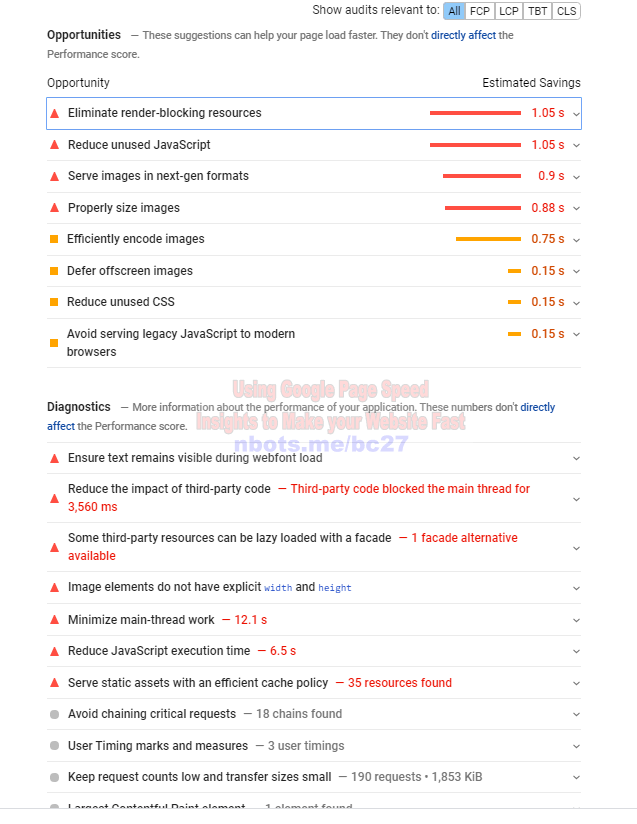
Google Page Speed Insights Suggestions For Speeding Up Web Page
Image of Increase Speed Of Website Google Page Speed Insights Suggestions For Speeding Up Web Page.
Google Page Speed Insights Suggestions For Speeding Up Web Page

====================================================================
== Resources Related to Make Website Faster with Google Page Speed Insights ==
====================================================================

===========================================================
======= Follow https://www.scrapersnbots.com ==============
===========================================================

Watch Videos on YouTube.com Related to Make Website Faster with Google Page Speed Insights

Use Cloudflare to Enhance the Performance ⏳ of your Website


In this video I'm going to show you how you can increase the speed of your website by using Cloudflare and many other benefits of cloudflare which has a 100% free plan as well. 

https://www.scrapersnbots.com/blog/content/how-to-dramatically-increase-the-speed-of-your-website-use-cloudflare.php


The web page that accompanies this video can be found on the screen right now which tells you all about Cloudflare and how to use it for the numerous benefits including your web site speed.


Cloudflare is essentially an alternate DNS server which is basically the phone book for the internet when a person types in your website address into their web browser a DNS server take that web address which is letters www.google.com or yahoo.com or whatever it is and turns it into numbers because that's how the internet works and communicates with each other.


Computers communicate with each other via a numeral system called IP addresses so a DNS server takes that web address that your website visitors enter into the web browser to try to get to your website and turn that into the IP address so then the website content can be displayed in your visitors web browser. 


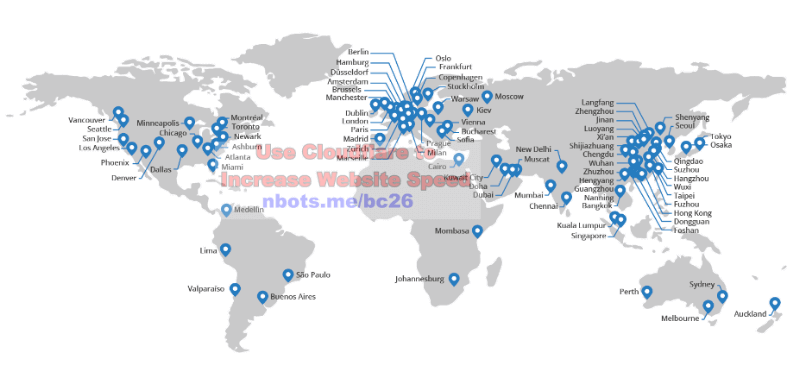
Cloudflare has many different technologies which helps speed up your website and the way it basically does that is Cloudflare has hundreds of different servers all across the world and the DNS server that is closest to your website visitors geographical location is the Cloudflare server that serves up the web pages to your website visitor.


That's one way that your website is displayed and it's usable faster using Cloudflare another way is Cloudflare caches most of your website static content on your website that doesn’t change much, for example on this web page this video is not likely to change much ever and the images are not likely to change.


The Cloudflare server stores them at its web server so the second time your website visitor or third time or any subsequent time after the first time the visitor comes to visit your website Cloudflare serves up a cached version of the images and the other static content which makes the webpage show faster as well.


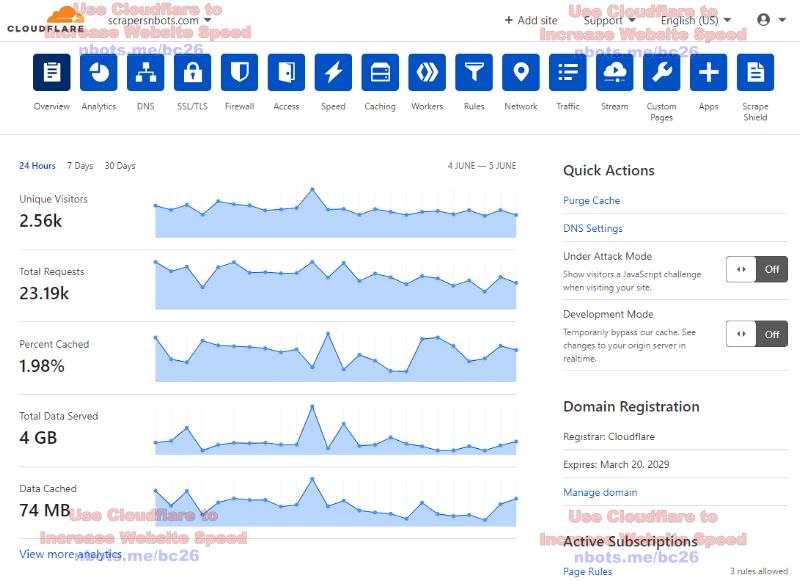
This is the Cloudflare member area right here. Cloudflare also has a lot of other benefits including analytics. The website analytics that Cloudflare provides are pretty basic unless you have a paid upgraded account. 


Cloudflare has different types of SSL encryption that you can enforce on your website and that's another benefit of Cloudflare is if you don't already have a secure website meaning, a website with the web address of https vs. http, you can get a security certificate 100% free through Cloudflare.


Cloudflare has a built-in firewall and there are other things to increase the speed of your website. See how it shows here that the content on our website, Scrapers〘N〙Bots, displays in just 1 second. 


That's quite fast but there are other factors that are involved here regarding page speed, it's not as if you have a slow website and you sign up with Cloudflare all the sudden you're going to be doing the quarter mile in 5 seconds it's not like that.


There are other factors involved when it comes to making your website as fast as possible. Come to this page at https://www.scrapersnbots.com/blog/content/how-to-dramatically-increase-the-speed-of-your-website-use-cloudflare.php ...